Core References & Private Search
Store shared policy manuals and statutes in core_references/, then optionally enable Private Search so indexing and passage lookup stay on this computer.
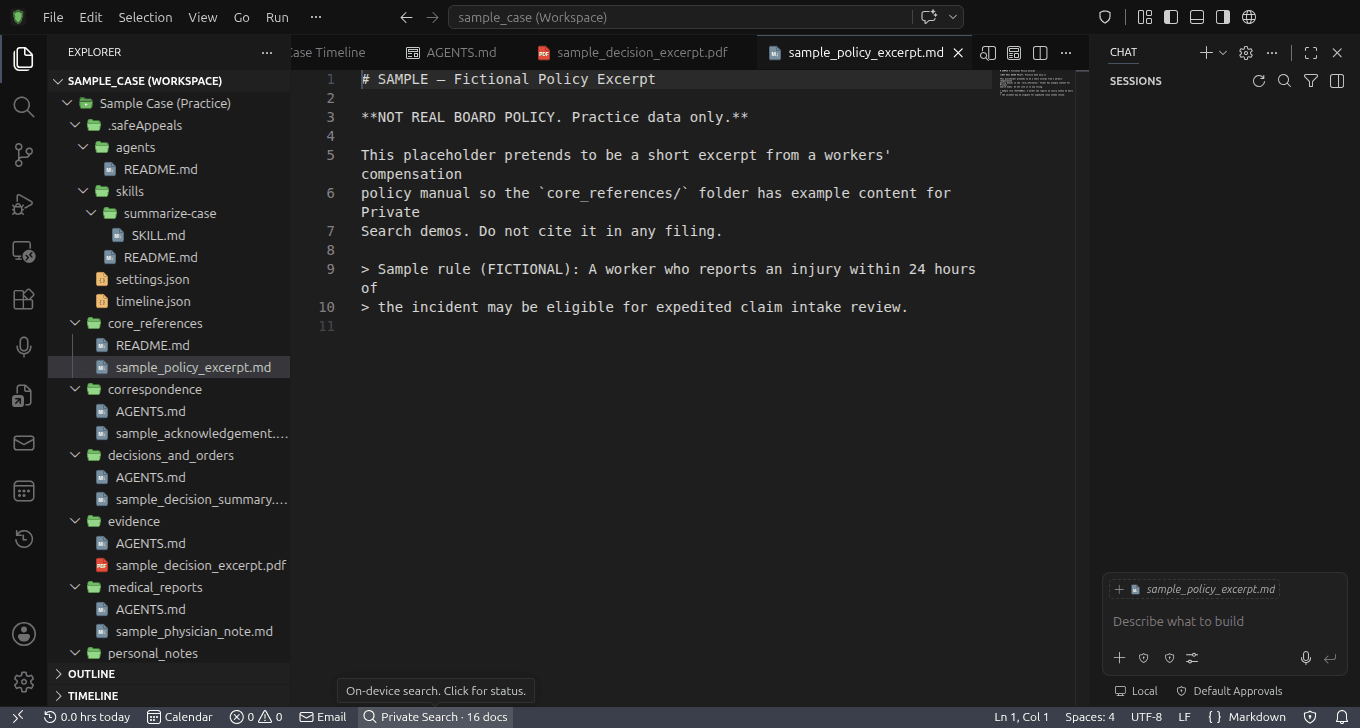
On-Device Index
Private Search builds an index on this computer for case files and core references
No Credits to Search
Searching the private index does not spend credits and does not require the AI to run
Consent Before Downloads
Optional search tools (~350 MB) and scanned-PDF OCR install only after you consent
What is the core_references Folder?
Create a core_references/ folder at your workspace root for shared reference materials—statutes, regulations, policy manuals, textbooks, and published authorities you cite across matters. Case-specific files (medical records, correspondence, drafts) belong in the standard case folders instead; Private Search indexes those under a separate case-file scope.
How Private Search Works
- Local index: Index data and search tools stay on this machine
- Guided setup: Checks hardware readiness, then offers optional installs
- Separate from chat: Cloud chat only sends text you choose when you ask the assistant
- Folder watch: Supported files under watched folders are ingested as they change
What Belongs in core_references?
Different workspace types have different types of authoritative documents. Here's what belongs incore_references for each use case:
Legal & Claims Workspaces
Policy manuals, statutes, regulations, and legal precedents
Documents to include:
Example query:
Search core references for permanent disability rating appeal requirementsResearch & Academic Workspaces
Textbooks, methodology guides, seminal papers, and research protocols
Documents to include:
Example query:
Search core references for ethical considerations for participant recruitmentBusiness & Project Workspaces
Company policies, industry standards, contracts, and professional guidelines
Documents to include:
Example query:
Search core references for quality control procedures for client deliverablesSetting Up core_references
Set Up Private Search (optional)
Open guided setup from Tutorials or the Command Palette
- Help → Tutorials → Private Search, or Command Palette → Set Up Private Search
- Nothing downloads without consent; you can skip and return later
- Optional search pack is about ~350 MB; scanned-PDF OCR is a larger optional install
Create core_references/
Scaffold the folder or create it manually at the workspace root
- Command Palette → Create Core References Folder, or create core_references/ yourself
- Put statutes, policy manuals, and textbooks here—not case medical files
- Keep a root AGENTS.md brief so the agent knows where references live
Add Documents & Search
Copy authoritative documents, then search the private index
- Supported formats include PDF, DOCX, TXT, and Markdown
- Command Palette → Search Private Index or Show Status
- In Ask or Agent mode, ask the assistant to search core references or case files
- Searching the private index does not spend credits
How to Search
Once Private Search is set up and documents are indexed, you can search without chat credits:
Search Private Index— Command Palette command for on-device passage searchSearch Private Index → “appeal deadlines for workers compensation”Show Status— Private Search: see whether the index is ready and what is installedCommand Palette → Show StatusAsk or Agent mode— After setup, the assistant can search core references, case files, or both“Search my core references for permanent disability rating criteria”What Search Returns
- Source citations: Document identity and relevant passages
- Scoped results: Core references vs case files vs combined search
- Local-only index: Index data stays on this computer
Best Practices for Reference Documents
Use Clear Filenames
Name files descriptively so you can identify them in search results
Organize with Subfolders
Use subfolders to group related documents for better search results
Keep Documents Current
Regularly update policies, regulations, and guidelines as they change
Quality Over Quantity
Focus on authoritative, official sources rather than collecting everything
Security & Privacy
Private Search indexing and lookup run on this computer. Cloud chat is separate: only the text and attachments you choose to send when you ask the assistant a question leave this machine (to SafeAppeals Cloud / your chosen model provider).
Local Processing
All document indexing and search happens on your local machine
No Automatic Uploads
Documents stay in your workspace folder and are not automatically sent anywhere
AI Provider Choice
You control which AI services process your queries and responses
Workspace Isolation
Each workspace has its own separate index - documents don't mix between projects
Troubleshooting
Documents not appearing in search results
→ Wait a few seconds for indexing to complete. Check that files are in the core_references folder and are supported formats (PDF, DOCX, TXT).
Search results are irrelevant
→ Try more specific search terms. Check that your documents contain the information you're looking for. Consider reorganizing with clearer filenames.
Slow search performance
→ Large documents take longer to index. For best performance, keep individual files under 50MB. Consider splitting very large documents.
Changes not reflected in search
→ The system automatically detects changes, but you can force a re-index by touching/modifying the file timestamp.
Pro Tip: Pair with AGENTS.md
Keep a root AGENTS.md case brief that points the agent at core_references/ for shared authorities and at your snake_case case folders for matter files. Tutorials open a sample matter with this layout.